
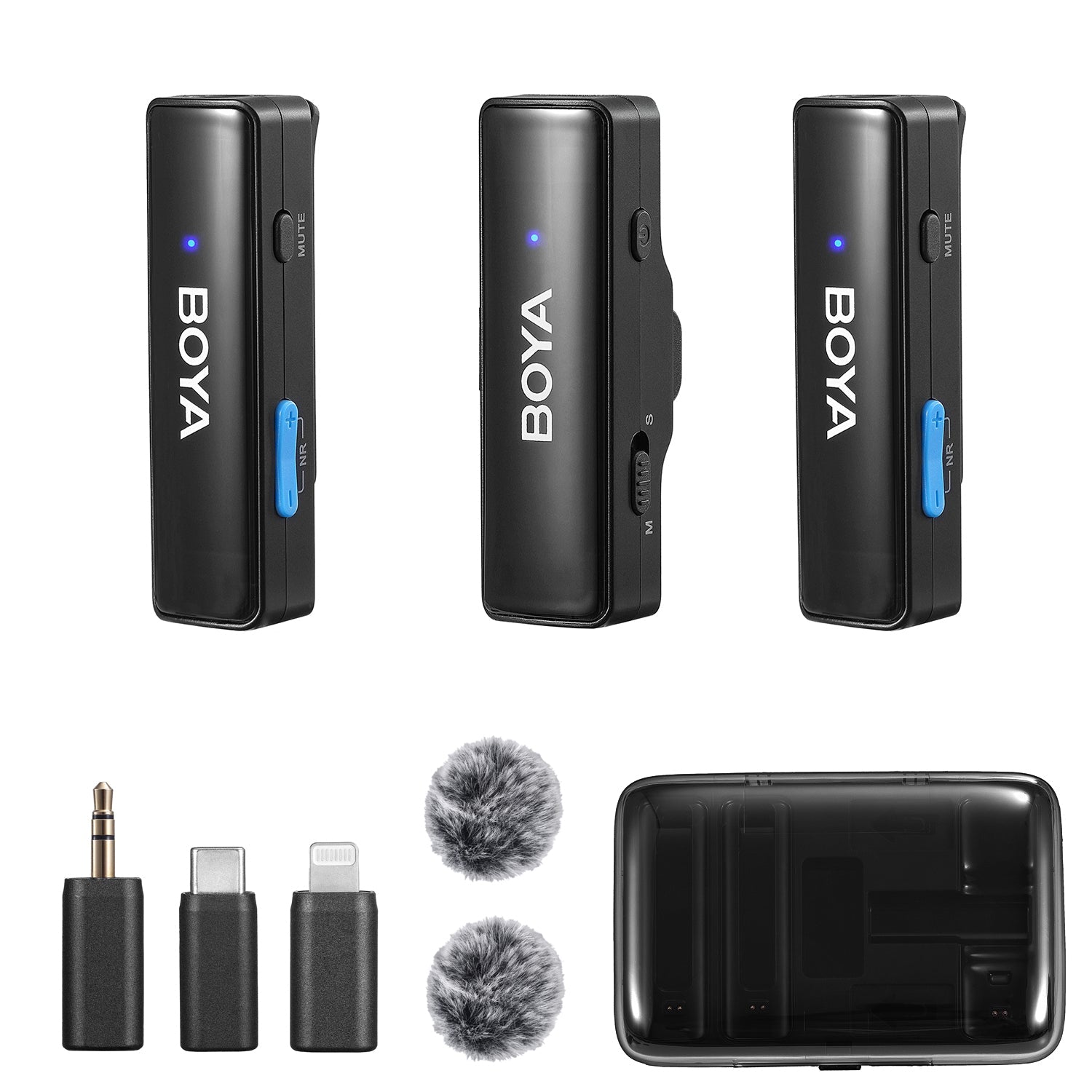
BOYALINK Wireless Microphone: Setup and Model Selection
A wireless microphone can make a moving interview or video easier to record, but the right setup depends on the exact BOYALINK generation and receiver you own. Start with the product name printed on the device or packaging, rather than assuming that BOYALINK, BOYALINK 2 and BOYALINK 3 have the same connections or controls.
Identify Your BOYALINK Model First
Check the transmitter, receiver and package label. Confirm which receiver came with your kit, how many transmitters are included, and which recording device you intend to use. Keep the manual for that generation with the kit.
For current product information, compare BOYALINK 2 and BOYALINK 3. Their product pages describe the available versions; accessories and operating steps should be matched to the selected model.
Match the Receiver to Your Recording Device
| Recording device | What to check |
|---|---|
| USB-C phone or tablet | Confirm that the chosen receiver and recording app support microphone input on that device. |
| Lightning device | Select an explicitly compatible receiver or approved adapter; a different plug shape is not enough. |
| Camera | Check the camera microphone input, the receiver output and the correct cable. |
| Computer | Select the receiver as the input device in both the system and the recording application. |
A Simple Before-Recording Workflow
- Charge or power the components as specified in the model’s manual.
- Connect the correct receiver and confirm that the transmitter is paired.
- Select the intended input in your camera, phone app or computer.
- Clip the microphone where clothing will not rub against it. Add appropriate wind protection outdoors.
- Record normal speech, a louder sentence and a few seconds of the room. Listen back through headphones.
- If you change noise processing or gain, repeat the sample before filming the full take.
Solve the Problem Before Replacing the Microphone
If the sound is quiet, first check the selected input and recording level. If it is distorted, reduce the input level and repeat the loudest part of the take. If the recording contains wind, change placement and wind protection. If an app uses the phone’s internal microphone, check that app’s external-input support.
Use the microphone background-noise guide to separate environmental noise from electrical hiss, wind and processing artifacts.
Frequently Asked Questions
Can every BOYALINK receiver work with every device?
No universal compatibility is assumed. Match the exact receiver, connector, recording device and app before purchase or use.
Should I upgrade from an older BOYALINK?
Upgrade only if the current model solves a specific connection, recording or workflow requirement. Compare the actual kit contents and confirmed features.
Do I need noise cancellation for every recording?
Start with a clean recording position. Compare processing off and on, then choose the setting that preserves a natural voice for that scene.
Related Guides
Related Posts

Vox Pop Microphone Guide: Choosing a BOYA Mic for Street Interviews

BOYA Notra Nano: A Wearable Recording Workflow

Use BOYA Notra Nano Across Your Phone and Computer

BOYA Notra Neo: Features, Pricing and Practical Limits

How to Record a Call on iPhone 18 Pro: Two Workflows

BOYA Notra vs. Notra Neo: Six Differences to Consider

BOYA Notra Neo for Meetings, Phone Calls and Earbud Audio


